

Windows 11 offers handy widgets to boost productivity. The Outlook Calendar widget helps keep schedules visible without opening the app. Microsoft To Do supports quick task management and daily planning. Focus Session timers minimize distractions by blocking notifications during work. Phone Link allows seamless control of calls and messages across devices. Edge Collections organize research and links efficiently. Customizing widget placement creates a personalized workspace. Exploring these options reveals simple ways to stay organized—continue to learn more handy tips for a smoother workflow.
1. Discover the Top 7 Windows 11 Widgets to Boost Your Productivity
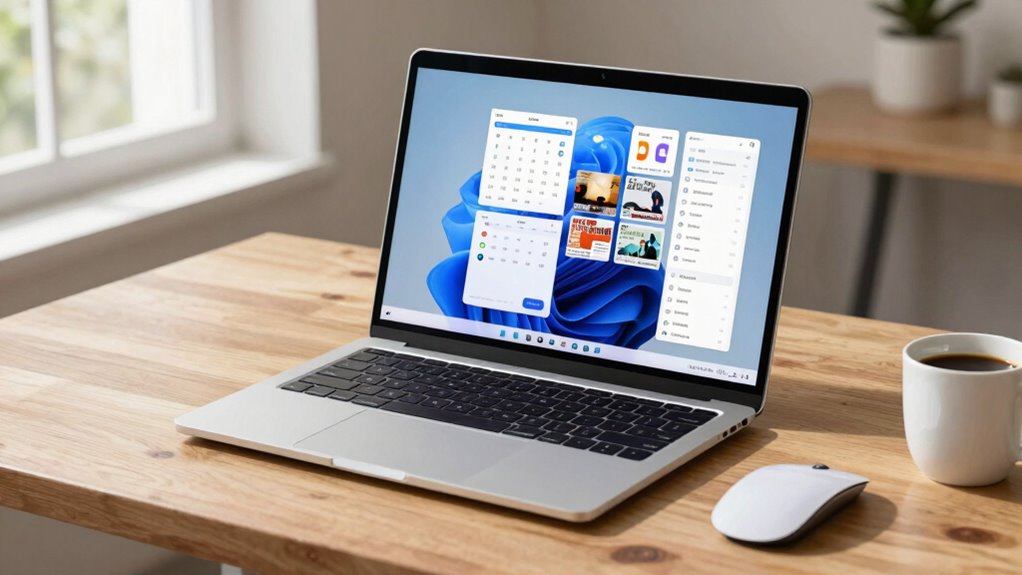
Ever wondered how to make your Windows 11 experience more efficient and less cluttered? The answer lies in exploring Windows 11 widgets, which can boost your productivity with ease. These handy tools are available through the widget board, accessible by clicking the widget icon on the taskbar or pressing Win + W. You can add new productivity widgets by clicking the + icon, and they instantly appear on the widget board’s left side for quick access.
For example, the Outlook Calendar widget provides a simple view of your daily schedule, while the To Do widget offers quick task overviews. The widget board makes it easy to customize your workspace, keeping everything you need right at your fingertips, streamlining your day and helping you stay organized.
2. How the Outlook Calendar Widget Keeps Your Schedule Front and Center?
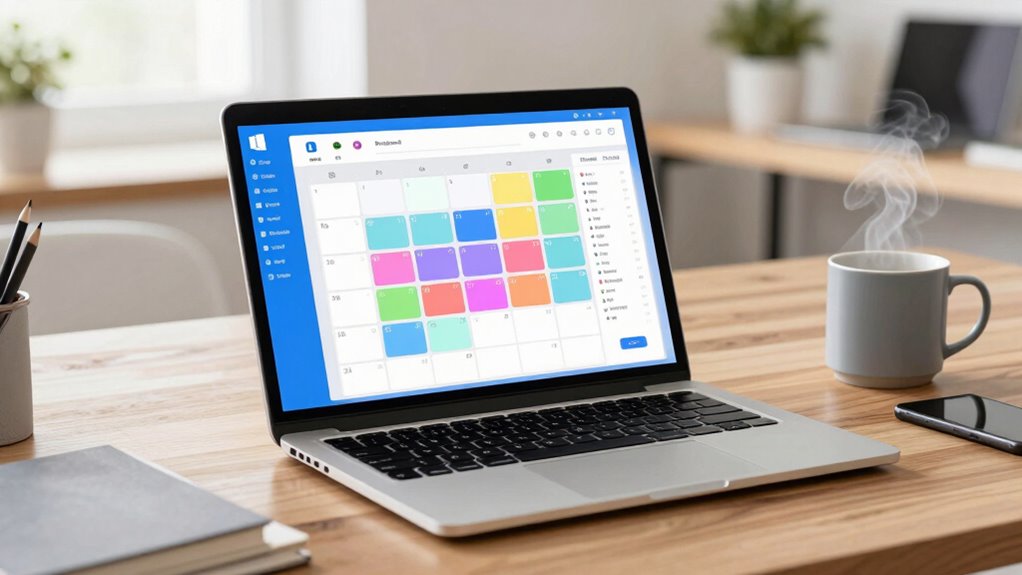
How does the Outlook Calendar widget help keep busy schedules organized and accessible? It offers a clear, schedule at-a-glance view by connecting directly to a Microsoft account, displaying upcoming events and daily plans without opening the full app. This makes staying on top of commitments simple and quick.
Users can customize the widget to show specific calendars and adjust time zones, ensuring relevant information is always front and center. It provides quick visibility into your daily and upcoming events. It also allows calendar integration, syncing with Microsoft accounts seamlessly.
Creating new events is easy—just click the Create Event button, which redirects to Outlook. While it doesn’t support weekly or monthly views, it keeps essential schedule details accessible, saving time.
3. Streamline Tasks With the Microsoft to Do Widget for Daily Planning
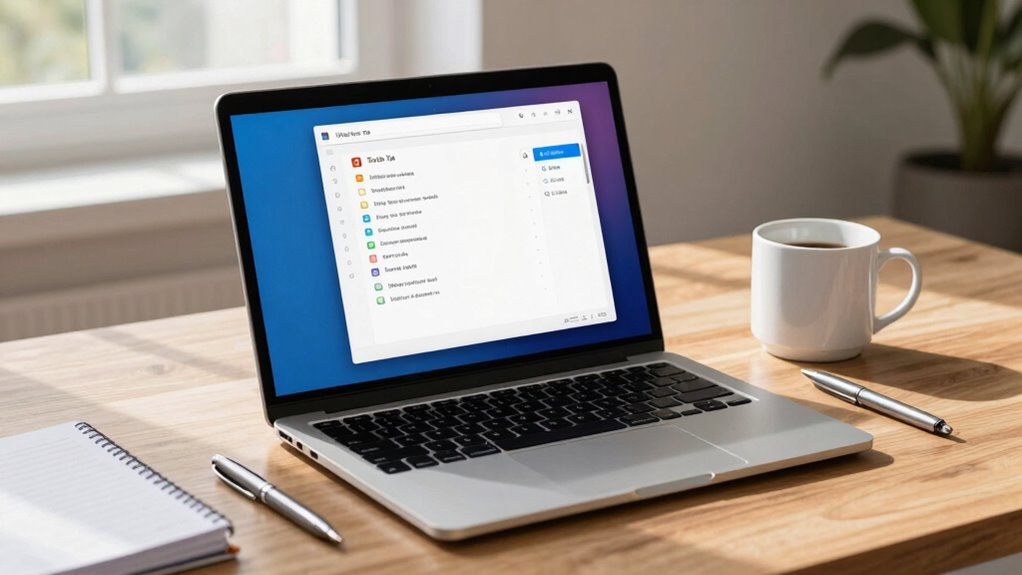
Want a simple way to keep daily tasks organized and within reach? The To Do widget makes daily planning more straightforward, helping boost productivity. This small app card can be added to the widget board in Windows 11 by pressing Win + W, clicking the + icon, and selecting the To Do widget.
It offers quick access to tasks with two views: Task and My Day. While detailed task info and reminders are in the full To Do app, the widget keeps your daily to-do list visible and easy to update. You can add, rearrange, and customize it to suit your needs, making it easier to stay on top of priorities.
This simple tool helps streamline tasks and keeps your daily planning efficient and stress-free.
Recommended Products
Microsoft Surface Go 3-10.5" Touchscreen - Intel® Pentium® Gold - 8GB Memory - 128GB SSD - Device Only - Platinum (Latest Model)
Check each seller's condition and delivery.
Microsoft Surface Go 3-10.5" Touchscreen - Intel® Pentium® Gold - 4GB Memory - 64GB eMMC - Device Only - Platinum (Latest Model)
Check each seller's condition and delivery.
4. Use the Focus Session Widget to Minimize Distractions and Get More Done
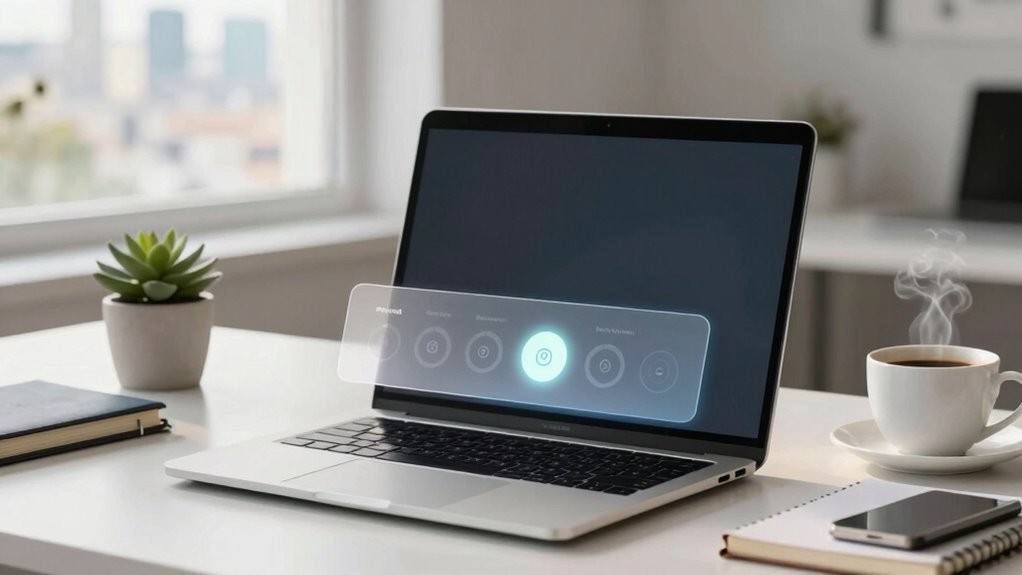
Have distractions ever sneaked into a busy work session, making it hard to focus? The Focus Session widget helps minimize those interruptions by pausing notifications for a set time, usually 25 minutes. To get started, open the Widget Board, select Focus Session, and press Play. It’s perfect for a Pomodoro, which breaks work into focused intervals.
Here are four tips:
- Customize the duration in Focus Settings to match your work style.
- Use the default 25-minute timer for effective concentration.
- Take a longer break after four sessions to recharge.
- Adjust screen-distraction options for a cleaner workspace.
Recommended Products
KADAMS Pomodoro Cube Timer Productivity Visual Timer - 5/10/25/50 Min Rotating Countdown (1
Check each seller's condition and delivery.
5. Connect Your Phone Easily With the Phone Link Widget for Seamless Device Management
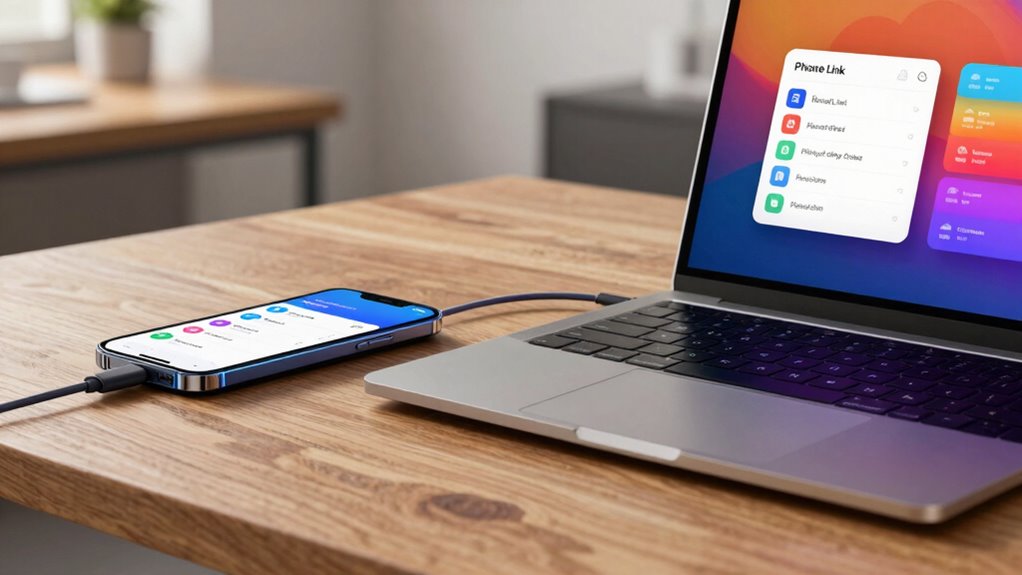
Connecting a phone to a Windows PC might seem like a complicated task, but with the Phone Link widget, it becomes surprisingly simple. This handy feature offers seamless cross-device access, letting users monitor battery life, signal strength, internet speed, and messages right from their PC. Available by default on Windows 11, it requires installing the “Link to Windows” app on the phone and pairing it with the PC. Once connected, the widget becomes active, making it easy to view and manage phone images on the computer—especially useful for Android devices.
Thanks to Windows 11 integration, users can quickly access phone data without switching apps, streamlining device management. This effortless connection saves time and keeps everything at your fingertips, boosting overall productivity.
6. Organize Research and Links With the Edge Collections Widget
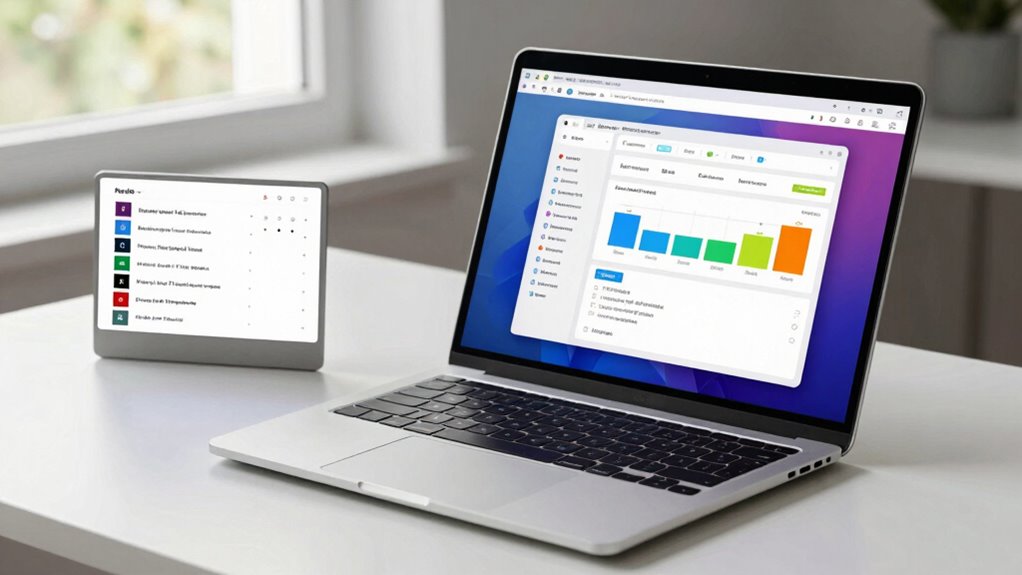
The Edge Collections widget offers a simple yet powerful way to keep research materials, links, and notes organized all in one place. By using this widget, users can manage their edge collections, making research more cohesive and accessible.
Here are some ways this boosts productivity:
- Centralized storage: All research links, notes, and resources stay in one spot, saving time searching.
- Easy access: Access your collections directly from the widget without opening multiple apps.
- Custom organization: Add, remove, or rearrange collections to suit your project needs.
- Enhanced focus: Keeping research structured minimizes distractions and streamlines your workflow.
With these features, edge collections become a helpful tool, making research more efficient and helping users stay organized.
7. Customize and Arrange Your Widgets for a Tailored, Efficient Workflow
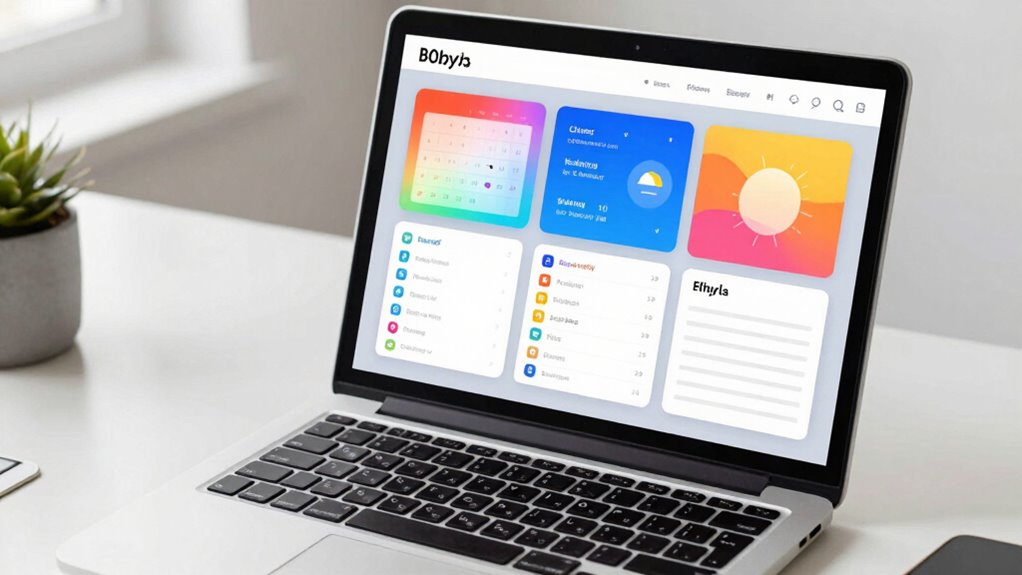
Ever wondered how to make your Windows 11 workspace feel more personal and efficient? The key lies in customizing your Windows 11 widgets to fit your unique productivity workflow. These small cards can be added, rearranged, and adjusted easily through the widget board accessible via the weather icon or Win + W.
For example, you might place the Outlook Calendar widget front and center to see your daily schedule at a glance, or set the To Do widget nearby to keep track of tasks with quick views like Task view or My Day. You can also personalize the Focus Session widget by adjusting timers and distraction settings.
Rearranging widgets allows you to create a workspace that’s both functional and comfortable. Making your digital environment work for you, not against you, enhances your overall productivity and comfort.